
Two WhatsApp accounts on one phone, and one account on two phones
You can run two WhatsApp accounts on one phone in two official ways: add a second account inside the WhatsApp app, or use WhatsApp and WhatsApp Business side by side. Each account needs its own phone number. To use one number on two phones, link the second phone as a linked device. Here is how each works and which setup suits a store.
By Mousa Alhelo, founder, E-SAFQA · Updated · 7 min read · How we write and test these guides

Three official setups compared
Modified apps such as GB WhatsApp and app cloners are not official. WhatsApp can ban numbers that use them, which is a serious risk for a store number your customers know.
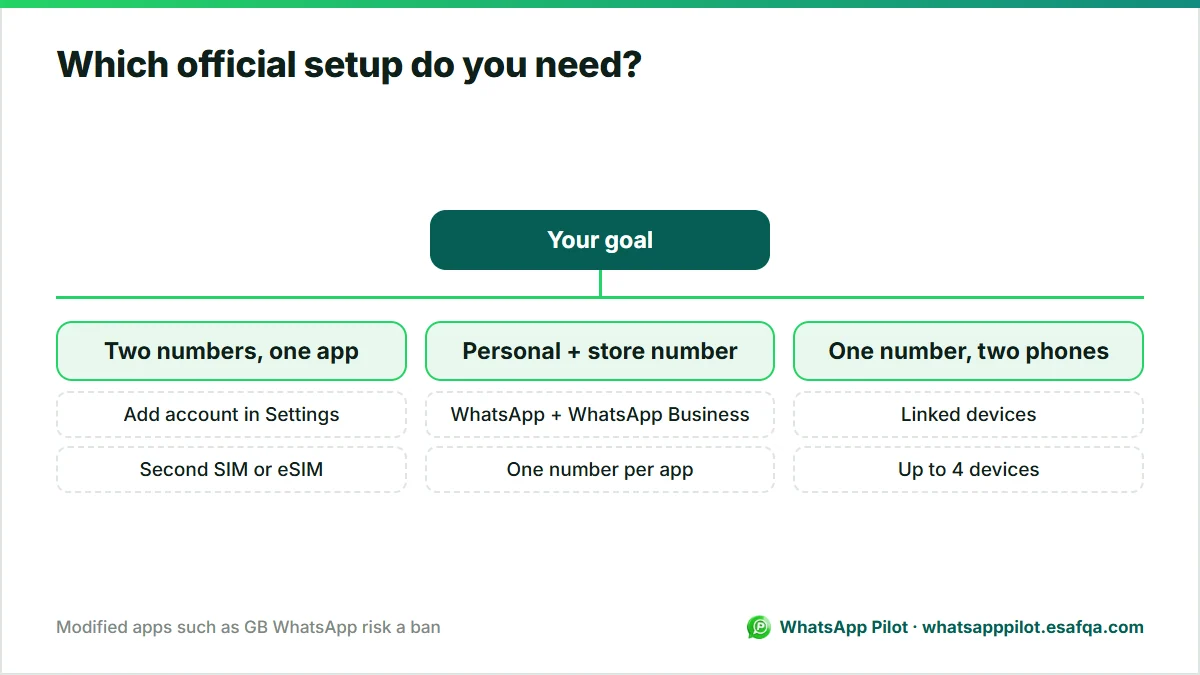
| What you want | Official way | What you need |
|---|---|---|
| Two numbers in one app | Add account in WhatsApp settings | A second number (second SIM or eSIM) |
| Personal and store number on one phone | WhatsApp plus WhatsApp Business, two apps | Two numbers, one per app |
| One number on two phones | Linked devices | Your main phone to scan a QR code; up to 4 linked devices |
Add a second WhatsApp account on Android
- Make sure the second number can receive an SMS or call for verification (a second SIM, an eSIM, or a phone where that SIM is).
- Open WhatsApp, go to Settings and tap the arrow next to your name.
- Tap Add account and verify the second number.
- Switch between accounts from the same arrow. Each account keeps its own chats, notifications and privacy settings.
Two WhatsApp accounts on iPhone
WhatsApp brought the multi-account feature to iPhone in 2026, after Android had it since 2023. If you do not see Add account in Settings, update WhatsApp from the App Store; the rollout has been gradual.
Before the feature reached iPhone, the official way was to install WhatsApp Business next to WhatsApp, each with its own number. That still works and is often the better choice for a store, because WhatsApp Business adds a business profile, catalogue, greeting and away messages, and labels.
WhatsApp and WhatsApp Business on the same phone
- Keep your personal number in WhatsApp.
- Install WhatsApp Business and register it with the store number (a second SIM or eSIM works on most phones).
- Fill in the business profile: name, category, hours, address, website and catalogue.
- Set a greeting message and an away message under Business tools.
- Put the store number, not your personal one, on your website, Instagram and packaging.
One WhatsApp number on two phones: linked devices
If two people need to answer the same store number, link the second phone instead of sharing a SIM. WhatsApp lets you link up to four devices to one account, including another phone, a tablet, a computer or WhatsApp Web. Each linked device works on its own, even when the main phone is offline.
One rule matters: if you do not use your main phone for more than 14 days, WhatsApp logs the linked devices out. Open WhatsApp on the main phone regularly.
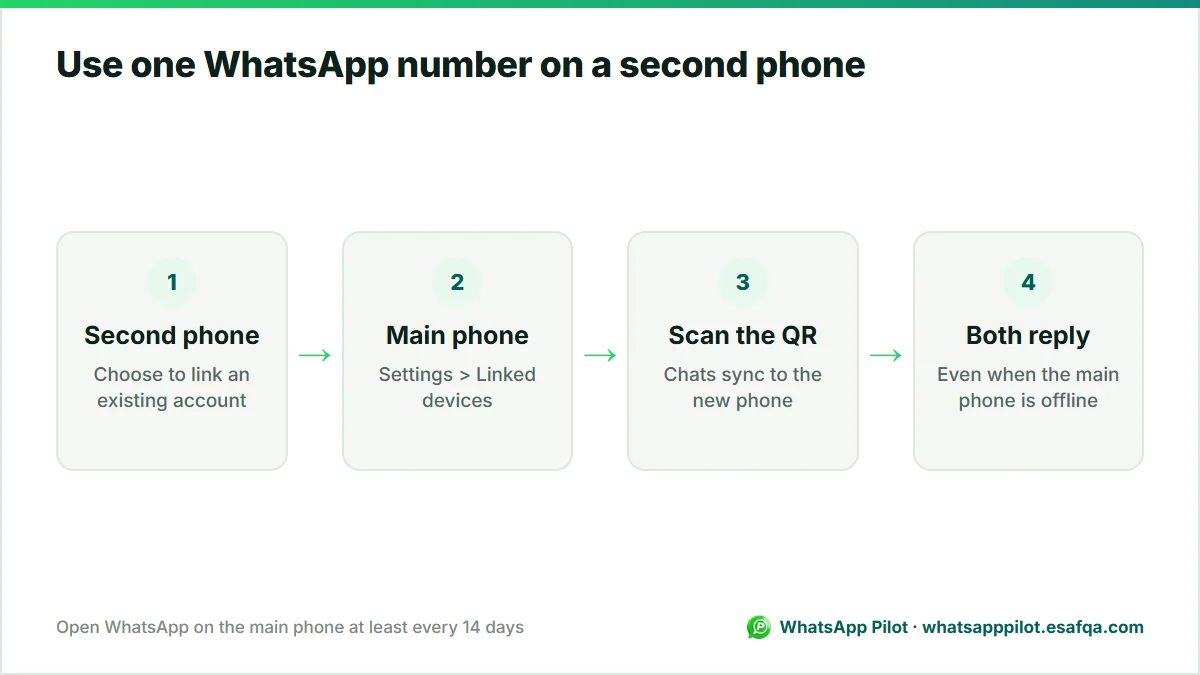
- On the second phone, install WhatsApp and choose the option to link to an existing account on the start screen, so it shows a QR code.
- On the main phone, open Settings (or the three dots) > Linked devices > Link a device.
- Scan the QR code. The chats sync and both phones can send and receive.
Which setup a store should use
- Give the store its own number in WhatsApp Business. Customers keep the same number even if staff change.
- Keep your personal WhatsApp separate, either as a second account or in the regular WhatsApp app.
- Add team members as linked devices instead of passing one phone around.
- Never use modified WhatsApp apps on the store number.
- Ask customers to save the store number, for example in your order confirmation; broadcast lists only reach people who saved it.
How WhatsApp Pilot fits in
WhatsApp Pilot connects to your store's WhatsApp number as a linked device: you scan a QR code once, the same way you link WhatsApp Web. It then sends order confirmations, shipping and cancellation notices, abandoned-checkout reminders and back-in-stock alerts from that number. It uses one of the four linked-device slots, your main phone stays the primary device, and the phone must stay active on WhatsApp.
Frequently asked questions
Can I have two WhatsApp accounts on one phone?
Yes. Add a second account in WhatsApp settings (Android, and iPhone since 2026), or use WhatsApp and WhatsApp Business side by side. Each account needs its own phone number.
Can I use one WhatsApp number on two phones?
Yes, with linked devices. Link the second phone from Settings > Linked devices on the main phone. Up to four devices can be linked.
Do I need two SIM cards for two WhatsApp accounts?
You need two phone numbers that can receive a verification code. They can be two SIMs, a SIM and an eSIM, or a number whose SIM is in another phone.
Is dual WhatsApp or GB WhatsApp safe?
Modified apps are not official and WhatsApp can ban numbers that use them. Use the built-in Add account feature or WhatsApp Business instead.
Will linked devices stop working?
Linked devices are logged out if the main phone is not used on WhatsApp for more than 14 days. Open WhatsApp on the main phone regularly.
Ready to put WhatsApp to work on your store?
Start with the free widget. Upgrade to Pro for order messages, cart recovery, the smart product button, back-in-stock alerts and Product Demand.